Home / Features
What the app helps you do
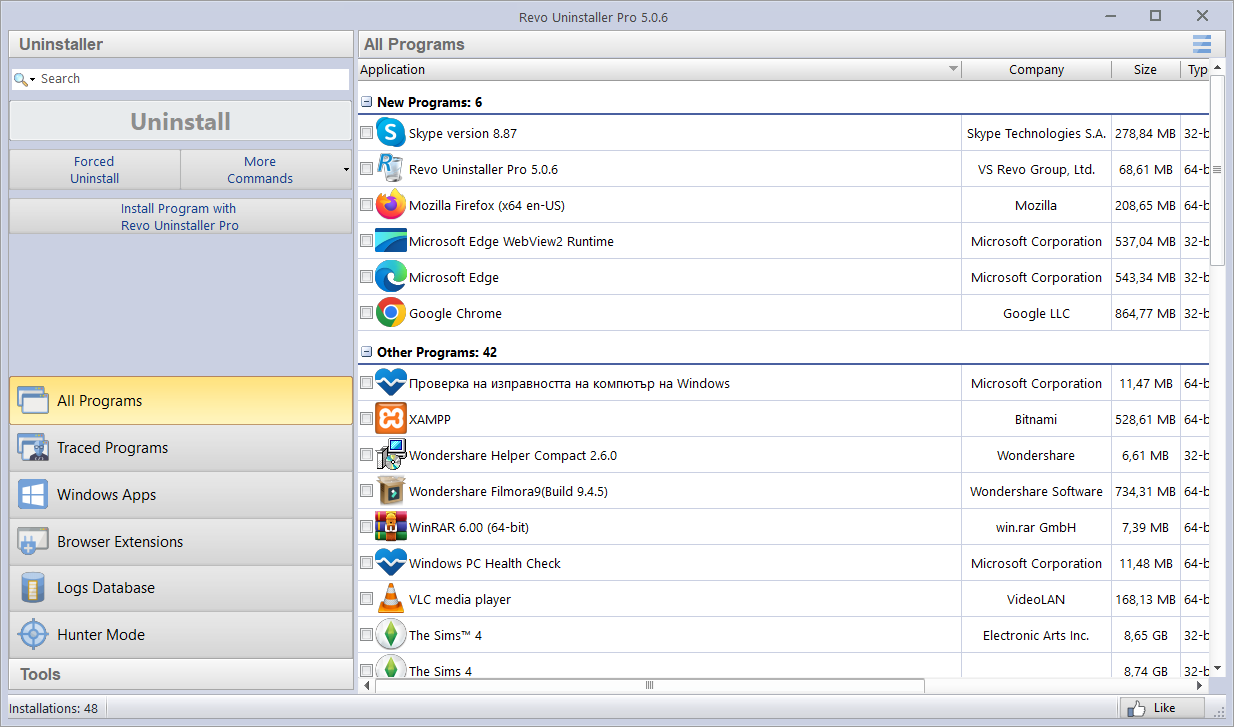
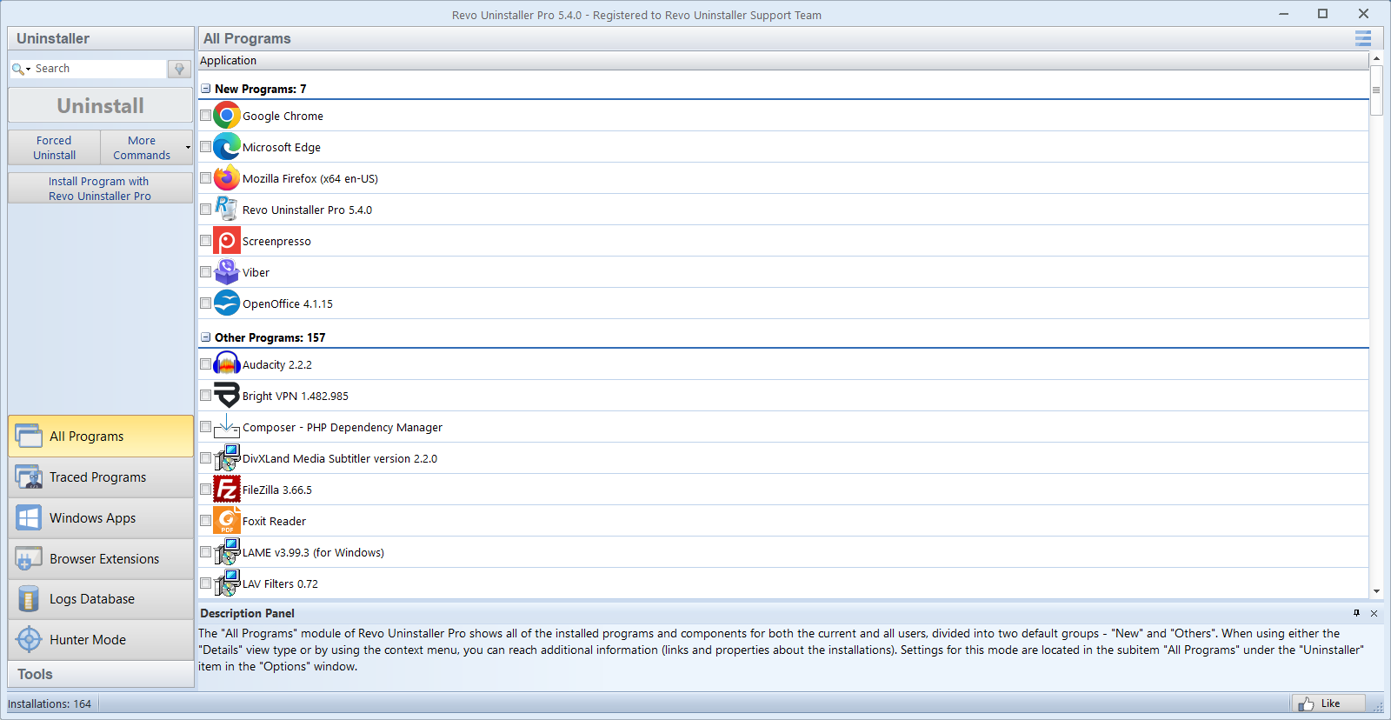
Revo Uninstaller wraps classic desktop uninstall workflows with deeper scans, optional tools, and batch-friendly views. Below are reference screens from this site’s images folder plus a capability map you can skim before opening the real program.

Free vs Pro in practice
Both editions target the same core idea: uninstall, then review leftovers. Pro typically adds more automation, batch flows, and technician-oriented options. If you only remove a few apps per month, start simple; upgrade when you hit a stubborn vendor installer or need deeper traces regularly.
-
Deep leftover scan
After the built-in uninstaller, review files, folders, and registry entries before you delete.
-
Hunter Mode
Target a window, shortcut, or tray icon when the app does not show up cleanly in Settings.
-
Junk & traces
Optional cleanup of temp files and traces when you are reclaiming space or resetting a PC.
-
You stay in charge
Confirm each item; skip shared runtimes unless you know nothing else needs them.
-
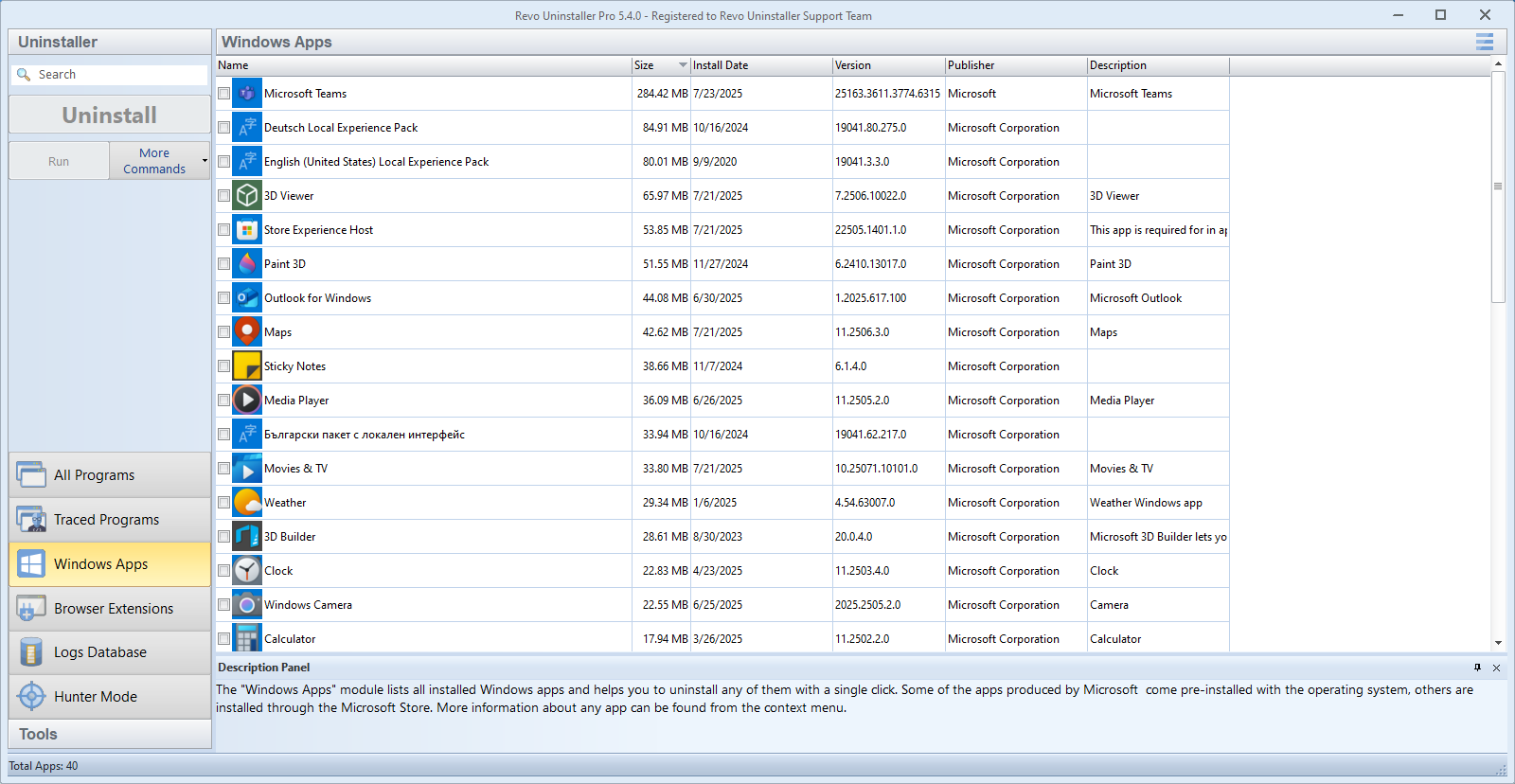
Windows Apps module
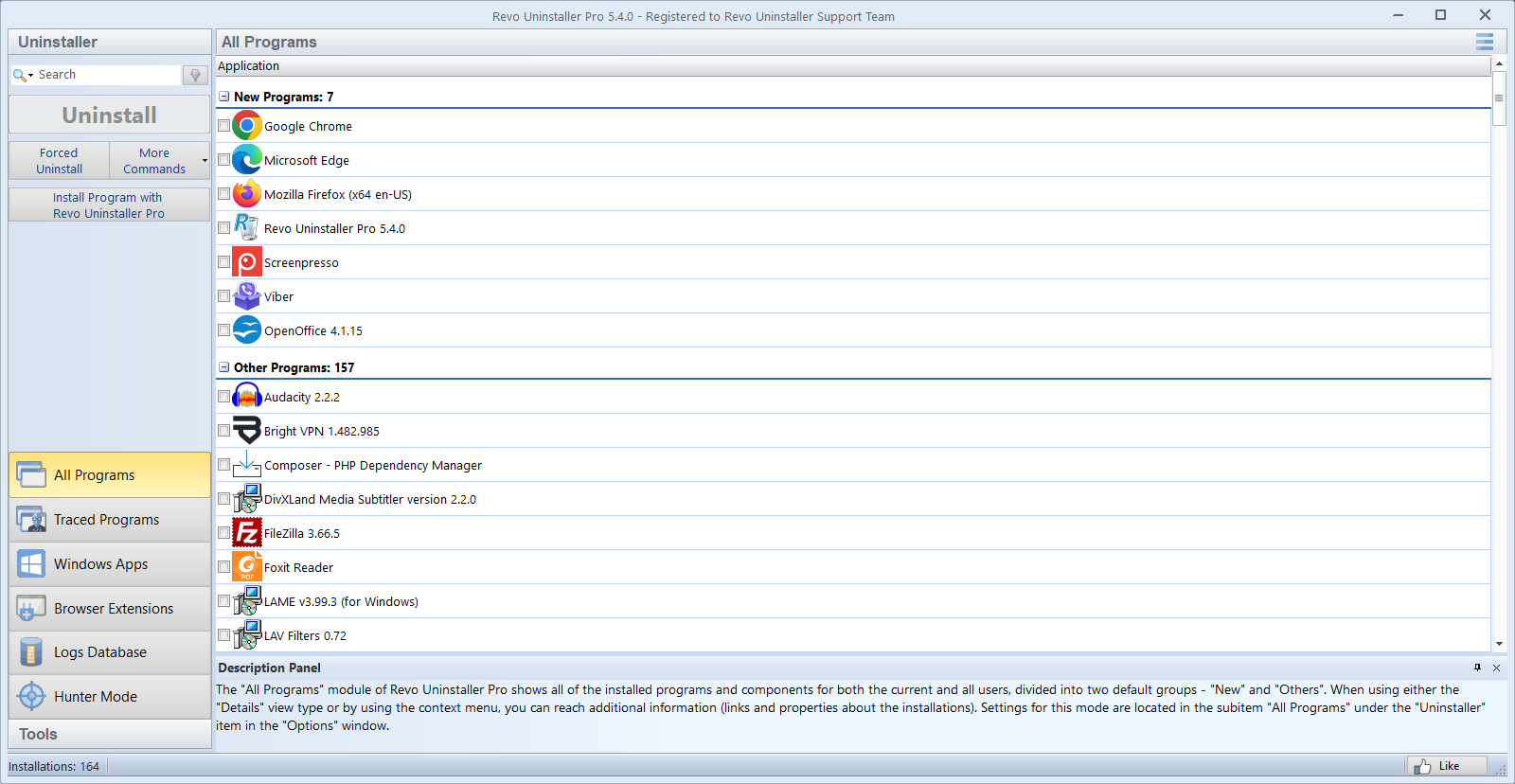
Lists many Microsoft Store and UWP-style packages alongside classic Win32 programs so you can uninstall from one workflow where supported.
-
Browser extensions
See extensions by browser and profile, then remove add-ons you no longer trust or need.
-
Forced & quick uninstall
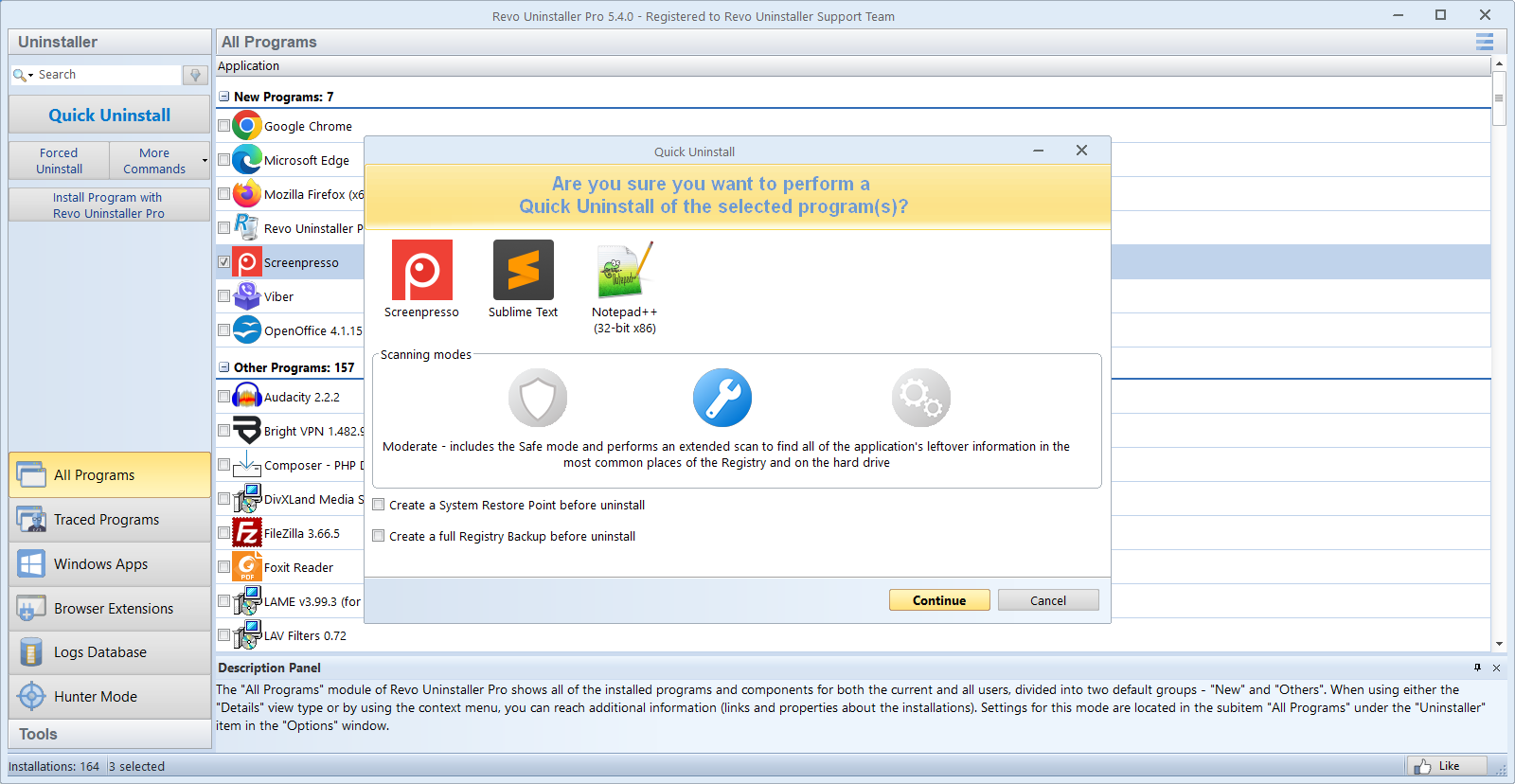
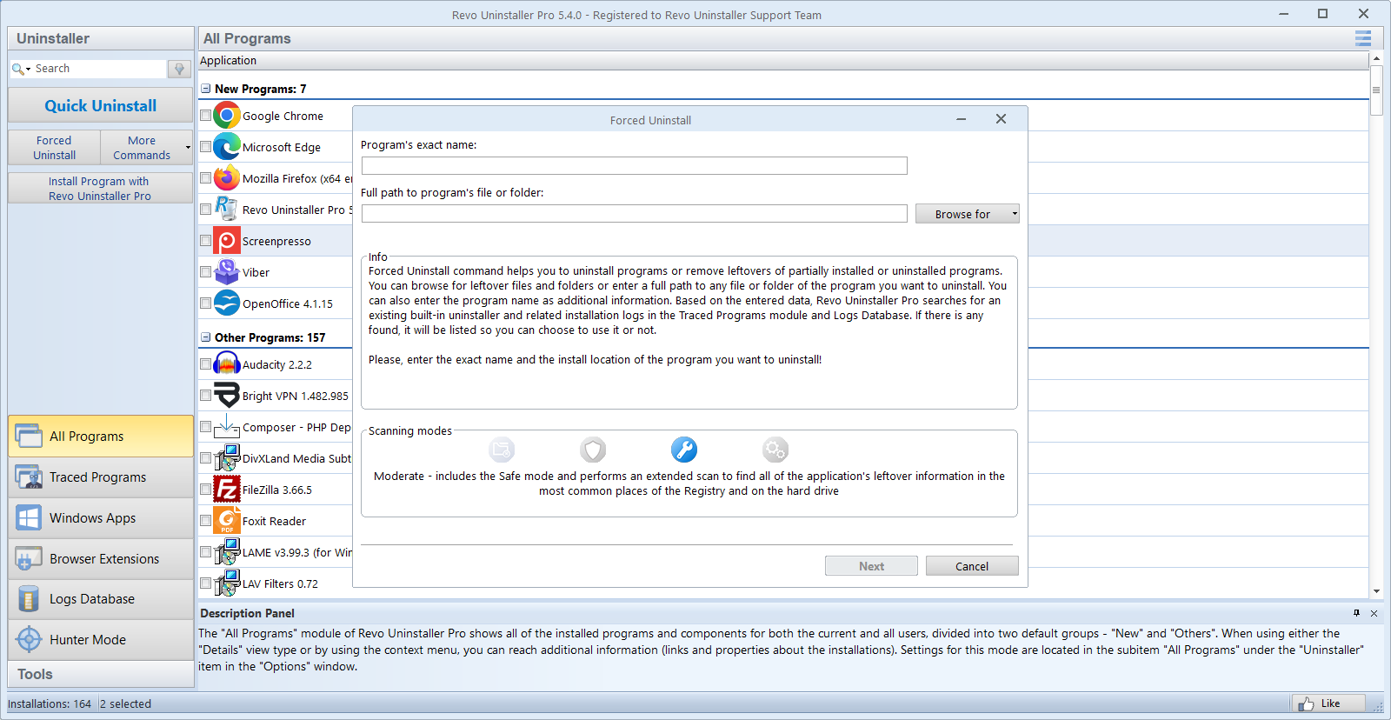
When the entry is missing or the stock uninstaller is gone, point at paths or use quick uninstall for selected programs, then scan.
-
Logs & traces
Traced installs and logs help advanced users compare before/after states. Everyday users can ignore this until they need a reproducible cleanup.
-
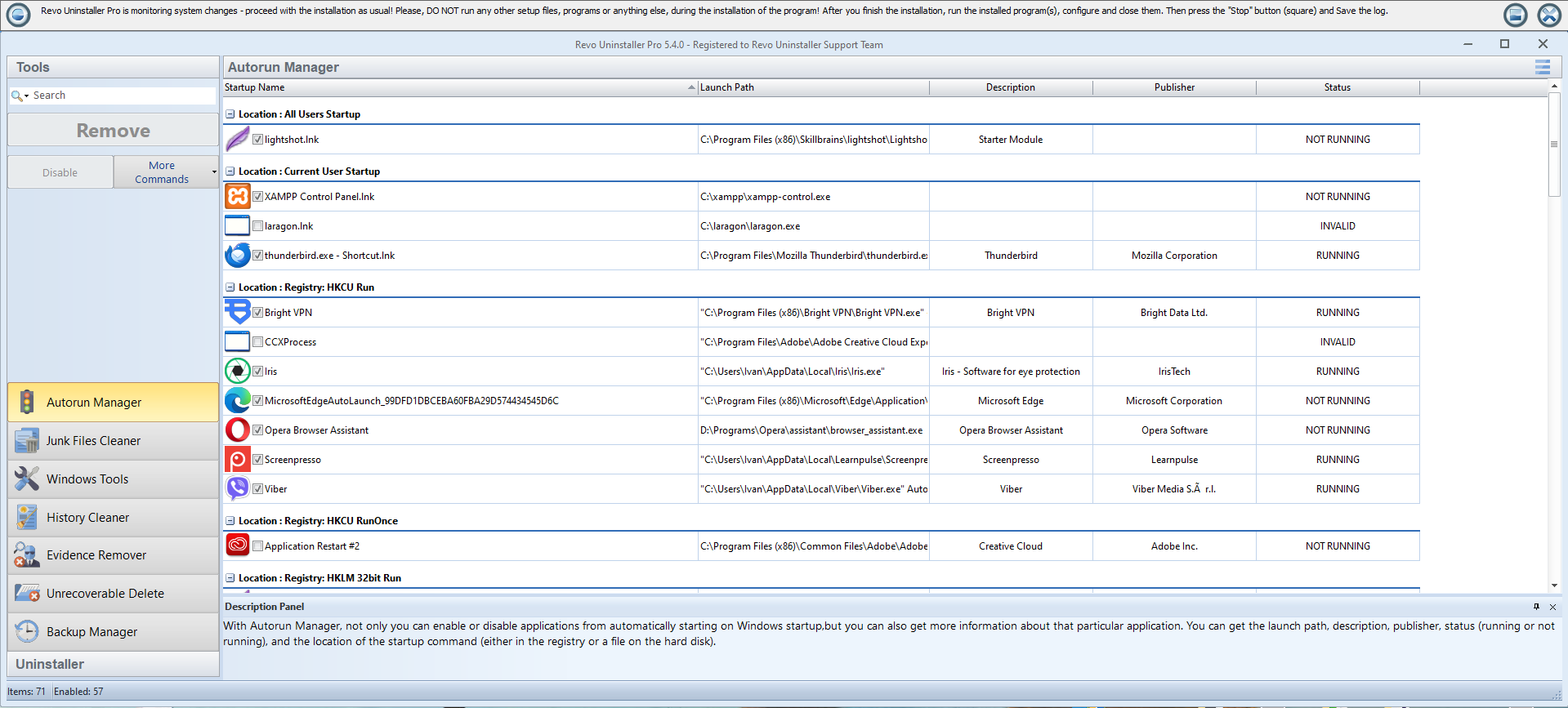
Tools suite
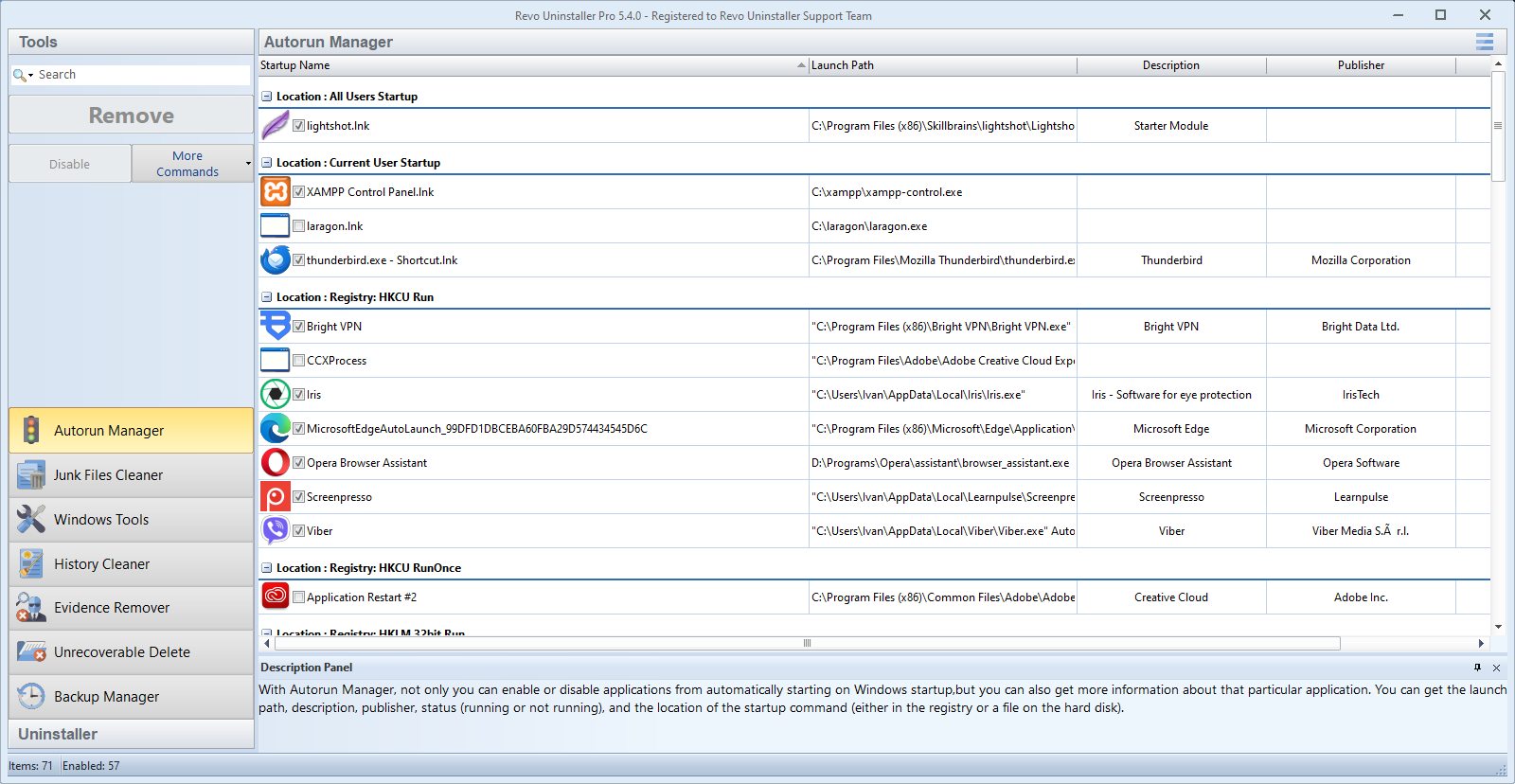
Autorun Manager, junk cleaners, Windows shortcuts, backup manager, and related utilities live under Tools for ongoing maintenance.
Next step: read common failure scenarios or watch walkthroughs once your vd folder has clips.
Scan modes (typical workflow)
During uninstall, Revo often asks how aggressively to look for leftovers. Names vary by version, but the idea is the same: start conservative when you are unsure.
Safer / minimal
Fewer registry and file hits. Good for first-time cleanup or when other apps from the same vendor are still installed.
Moderate (common default)
Balances breadth and noise. Read each line before you tick; skip anything that references unrelated programs.
Advanced / deep
More candidates, including fuzzy matches. Use with a restore point and extra patience; export or screenshot the list if you are troubleshooting for someone else.
Logs Database (quick mental model)
The database bundles community or curated uninstall intelligence. Treat suggestions like hints, not orders: your disk layout and version may differ from the entry you are reading.
When a log matches your program version, it can speed up cleanup. When it does not match, fall back to a normal scan and your own judgment.
Companion ideas inside Tools
- Autorun Manager: see what still launches at logon after you removed the “main” app.
- Junk Files Cleaner: optional pass for temp churn; run when you already closed heavy apps.
- Windows Tools shortcut: jump to built-in snap-ins without memorizing mmc names.
Batch uninstall etiquette
Selecting many programs at once saves time on refurbish benches, but it also multiplies risk. Group only products you recognize and that do not share a single runtime stack. Pause between batches if the machine feels unstable or disk activity spikes.
Portable vs installed (check the vendor)
Offerings change between versions. Whether a portable ZIP exists, how updates apply, and which modules are included may differ from a full setup. Always read the current download page and license before you deploy Revo on customer or family machines.