Windows uninstall playbook
Uninstall with confidence. Remove apps. Leave nothing behind. Deep guides for Revo Uninstaller and real-world Windows cleanup.
Learn when to run the vendor uninstaller first, how to read leftover scans, and where Hunter Mode and forced uninstall fit, without gambling on shared system files.
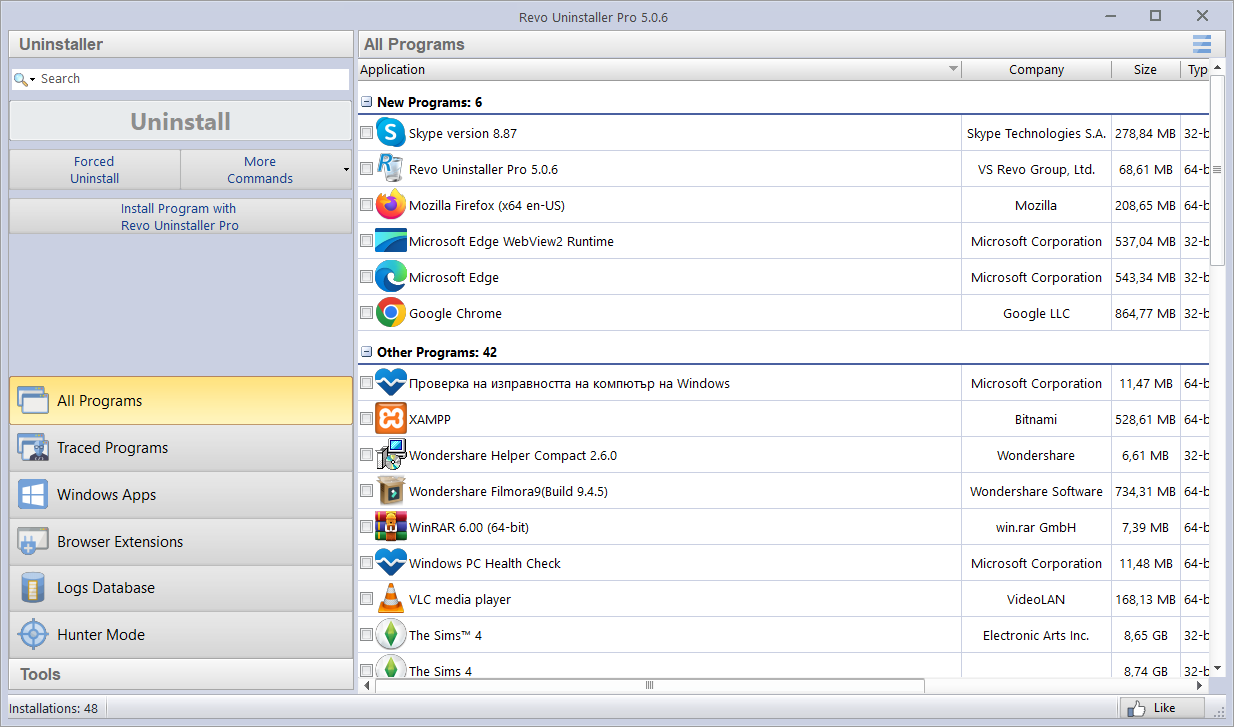
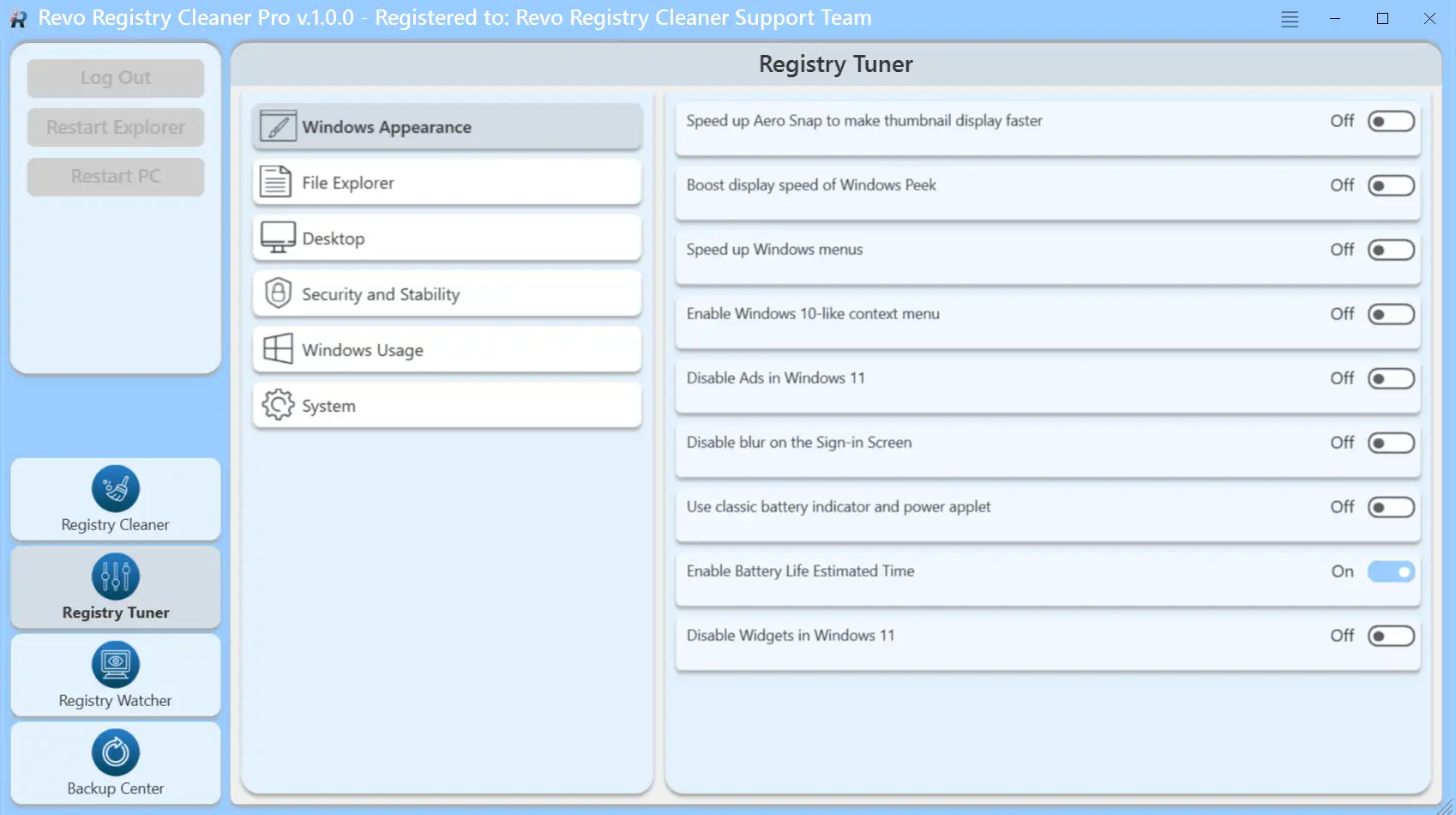
Main program window
Problem
When “Uninstall” in Settings is not the end
Windows does its job when the vendor script cooperates. These guides focus on what comes after: stubborn entries, services that respawn, orphaned shortcuts, and registry rows you should only touch when you understand them.
Broken or missing uninstallers
Crashes, empty list entries, half-deleted trees. Start with Guides for repeatable patterns—then run a disciplined leftover scan.
Surface hidden hooks
Startup entries, scheduled tasks, and extensions often survive the main app. Features shows where Revo exposes each layer.
Protect shared runtimes
One wrong checkbox can break unrelated software. Read shared runtime rules before you mass-delete.
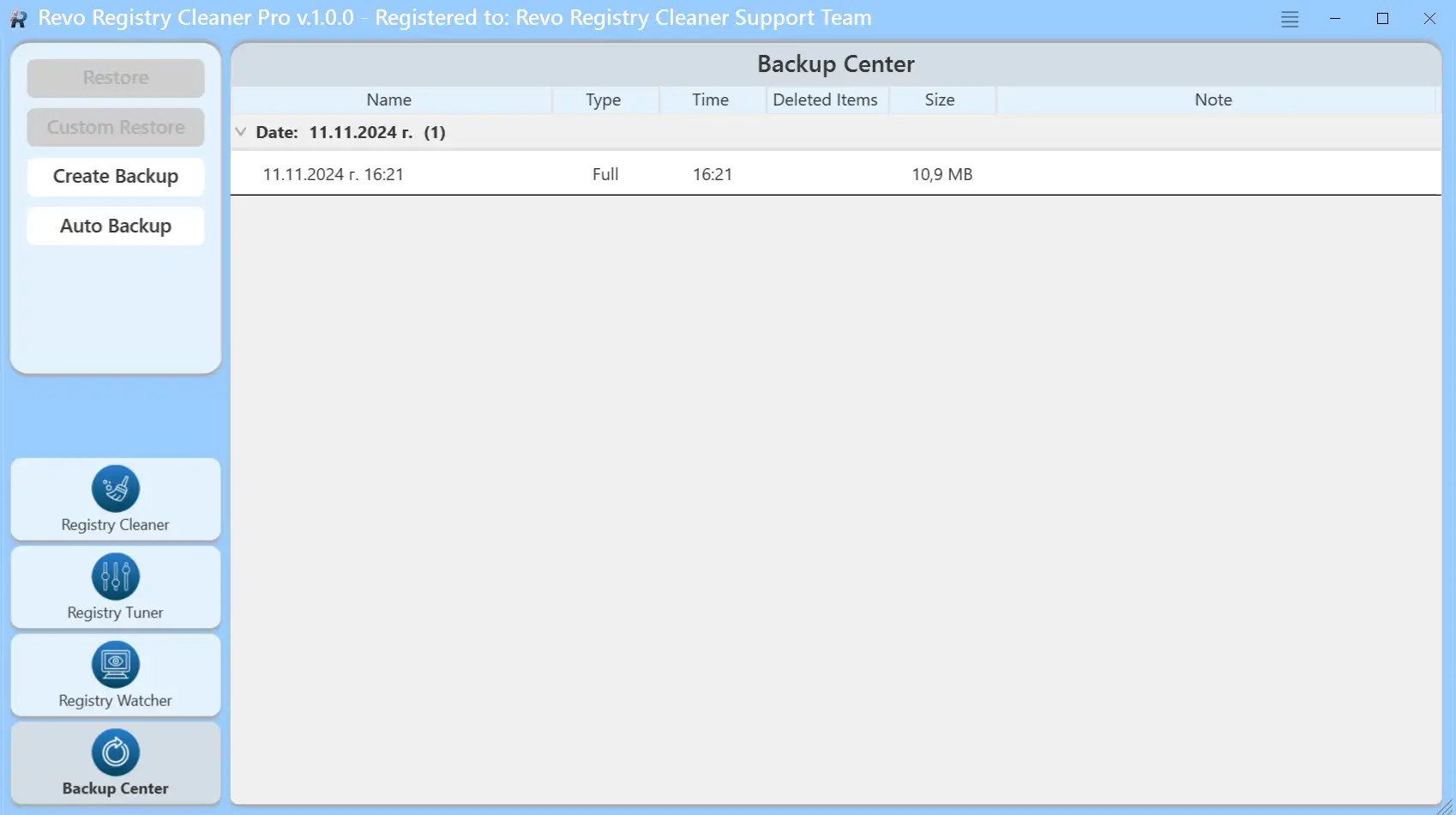
Before you force-remove or delete an entire folder
- Screenshot or copy the error text while the vendor wizard is still on screen.
- End the app from Task Manager only after you know which process belongs to that product.
- Save open work elsewhere; a reboot mid-uninstall is easier than recovering half-saved documents.
Symptoms
The app is “gone”—but the PC still acts like it isn’t
The main binary can disappear while tray agents, tasks, or shell hooks remain. Match what you see below to the right guide—so you do not shred the wrong directory.
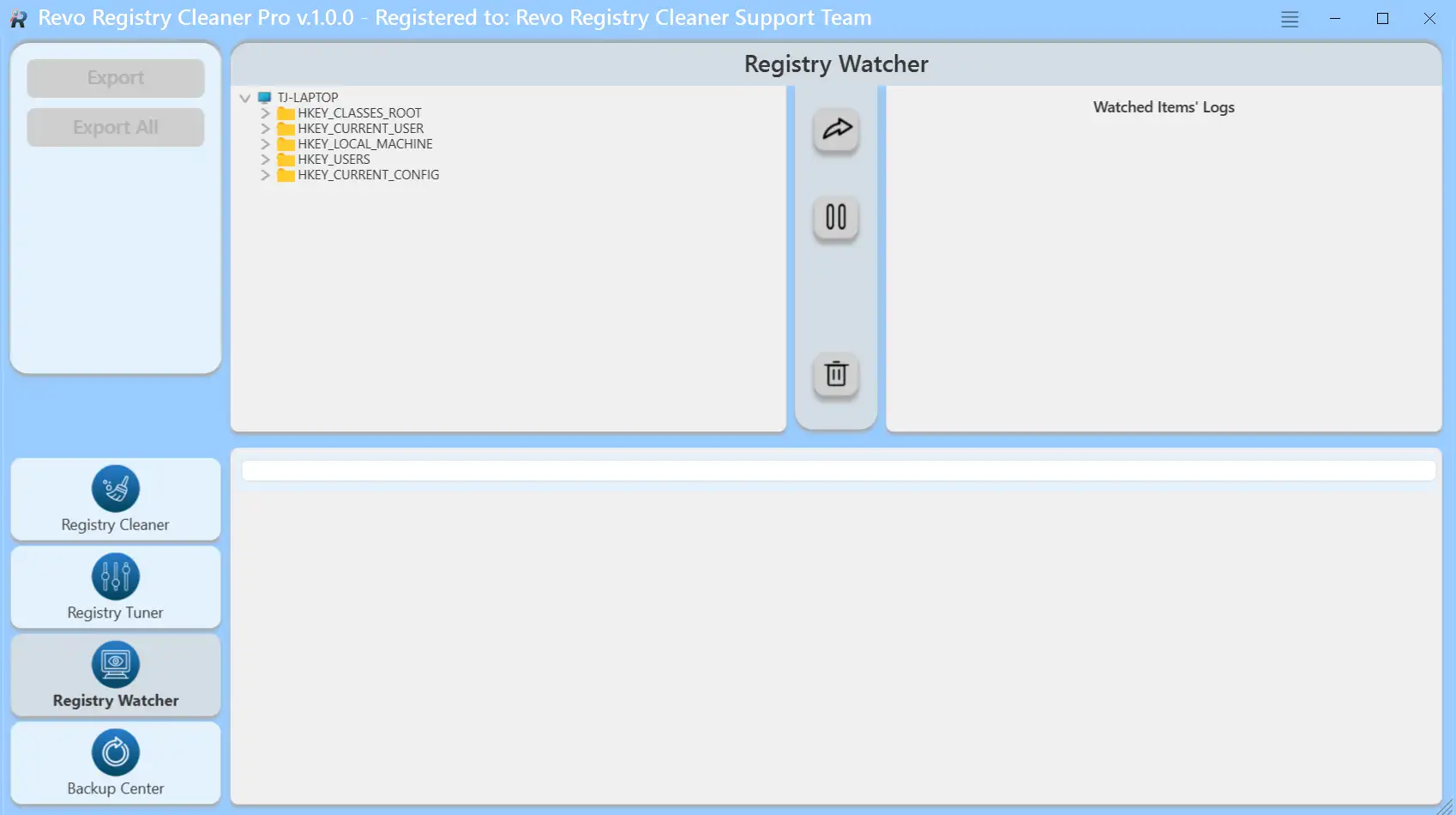
- Tray icon returns after login. Check Startup in Settings and scheduled tasks tied to the old publisher.
- Folder under Program Files still exists. Confirm nothing is running from it, then use a leftover scan instead of Shift+Delete on a live tree.
- Browser still lists an extension. Open Features for the extensions view or remove from each browser’s own page.
- Antivirus blocks the next step. See Guides: security software and finish the vendor uninstall before re-enabling shields.
These symptoms are normal on busy PCs. They do not always mean malware: often they mean an incomplete vendor script or a helper the installer never unregistered. When in doubt, collect evidence first, delete second.
Workflow
Sequence beats brute force
Close processes, let the vendor uninstaller finish, reboot when Windows asks, then audit leftovers. Skip the middle step and you create the “ghost” folders and startup entries we warn about here.
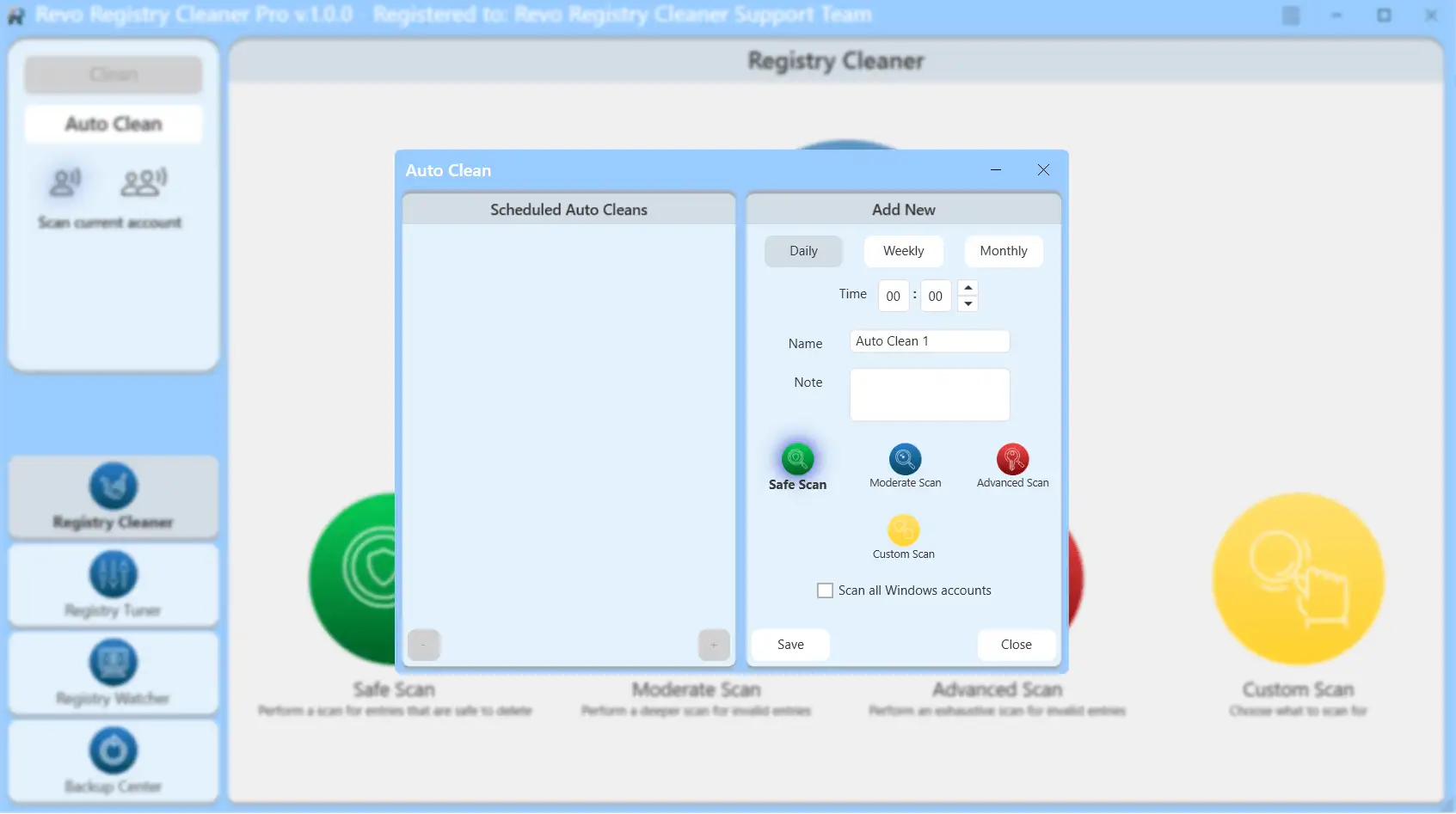
Repair, then uninstall
Many suites expose Repair in Installed apps or their own control panel—often enough to revive a crashed wizard before you touch the registry.
One product per session
Rushing ten uninstalls in an hour invites file locks and skipped reboots. Finish one product cleanly, reboot if prompted, then move to the next.
Log what you changed
A one-line note (product name, date, whether you rebooted) turns a confusing Tuesday into a searchable history when something resurfaces a month later.
Library
Pick your entry point
Same product, different learning styles. Jump to UI reference, scenario fixes, long-form checklists, or fast policy answers—then always read leftover rows before you delete.
Suggested first pass
Linear if you prefer structure—otherwise use the header anytime.
If you pause and come back tomorrow
Leave the PC idle with no pending restarts. Note whether the uninstall wizard was mid-way or fully closed. On return, open Task Manager first and confirm the old app is not running before you launch Revo or delete folders.
Who this site is for
Same Windows uninstall problems show up in different rooms. Pick the lane that sounds like you, then branch into the pages you actually need.
Home & family
One PC, many installers, mystery tray icons. Start with Download, then Guides when Settings alone is not enough.
Power users & builders
You already know where Program Files lives. Use Features for module layout and Dev stacks when toolchains overlap.
Small IT & bench techs
Repeatable scripts plus a safety net. Pair vendor silent uninstall docs with Revo’s leftover pass; log what you removed for the next ticket.
What this site is not
Not official support, not a license store, and not a promise that every leftover line is safe to delete. We explain patterns and link to deeper pages; you still choose each checkbox. For product defects and billing, use the vendor’s channels.
Quick path for a first cleanup
You do not need to read every page on day one. This sequence matches what most successful sessions follow.
- 01
Close the app and its updater from the system tray.
- 02
Uninstall from Settings or the program’s own wizard; let it finish.
- 03
Open Revo, run the leftover scan for that product only.
- 04
Reboot if prompted, then confirm shortcuts and startup are clean.
Need detail on a stuck step? Use the Guides index or ask a targeted question in the FAQ.
If you only have five extra minutes
- Open Settings → Apps → Startup and disable anything with the old product name.
- Empty the Recycle Bin after uninstalls so freed space shows up in Explorer.
- Note the exact program version you removed (Help → About) before you delete registry rows; it helps when comparing logs later.
Drivers and “support software”
GPU panels, printer assistants, and motherboard utilities sometimes install services that survive the main app. Remove them through the same brand’s uninstaller or Apps list before you treat their folders as generic junk.
After a failed Windows feature update
Rollback and partial upgrades can leave half-registered programs. Run Windows Update to completion, reboot once, then retry the vendor uninstall. Chasing leftovers before the OS is stable wastes time.
Laptops, sleep, and “resume” installs
Closing the lid mid-uninstall can freeze file operations. Plug into power, disable sleep for the session if needed, and let the vendor wizard reach a clean exit before you scan for leftovers.
Standard account vs administrator
Some uninstallers need elevation to remove machine-wide pieces. If a button is grayed out, sign in as an admin-capable user or use “Run as administrator” on the vendor’s uninstall tool, then retry before assuming the entry is broken.
Topics people look up
Jump straight to the angle that matches your situation. These notes sit alongside the rest of the site: calmer uninstalls with fewer surprises.
- Stubborn desktop programs
- Crashed uninstallers, missing entries, and half-deleted folders. Start in Guides, then confirm with Features.
- Hunter Mode
- Shortcuts and tray tools that do not show in Settings. See FAQ and the Hunter section on Blog.
- Store and UWP packages
- Different rules than classic installers. Read FAQ: Microsoft Store apps before you mix workflows.
- Runtimes and shared DLLs
- Visual C++, .NET, and “Common Files” paths. Shared runtimes: simple rules keeps other apps working.
- Video walkthroughs
- Host MP4s under vd/ and embed them on Videos for learners who prefer watching.
- Office & creative suites
- Large bundles leave services and tasks behind. Pair vendor uninstallers with a slow leftover pass; see Office-style suites on the blog.
- New laptop bloat
- Trials and OEM tools pile up fast. Follow OEM laptops and trial bundles so you keep drivers and drop junk safely.
- Backups before deep cleanup
- Restore points are not a full file backup. Read Restore points and backups before you clear long registry lists.
- Reading the scan list
- Sort by path, question System32 hits, and sleep on ambiguous rows. Reading a leftover scan walks through the mindset.
- Security suites and VPNs
- Use vendor removal tools first, then leftovers. Checklist: security software lists reboot and handoff order.
- Handing off or selling a PC
- Deactivate licenses and wipe personal data deliberately. Handing off a PC covers browsers and disk cleanup.
- Frozen uninstall over remote desktop
- Hidden dialogs and file locks are common over RDP. Guides includes a remote-session scenario and safer next steps.
- Game launchers & large caches
- Steam, Epic, and similar clients keep gigabytes outside Program Files. Uninstall the game or launcher from its own UI first; then decide whether leftover caches are worth manual cleanup.
- Portable and “extract-only” programs
- No entry in Installed apps does not mean zero footprint: check AppData, Startup, and scheduled tasks. Features lists where Revo surfaces those hooks.
- Backup, sync, and cloud clients
- OneDrive, Dropbox-style tools, and NAS agents keep hooks in Explorer and file filters. Quit them from the tray, use the vendor’s own removal option, then review leftovers so you do not strand half-synced folders.
- Dev stacks (Node, Python, Docker)
- Toolchains scatter user-level and machine-level installs. Remove the IDE or runtime through its installer when possible; treat global packages and virtual envs as separate decisions from the Windows Apps list.
Common mistakes (easy to avoid)
- ×Deleting every leftover line without reading the path or publisher hint.
- ×Skipping the official uninstaller because you are “in a hurry.”
- ×Removing Visual C++ or .NET packages just because the name looks old.
- ×Ignoring other Windows accounts on a shared PC before wiping folders.
- ×Assuming every row in ProgramData is junk without checking which service still references it.
- ×Running multiple uninstall tools at once on the same product and fighting over the same locked files.
Flip each mistake into a habit: pause, verify, reboot once, then rescan. FAQ covers SmartScreen, Store apps, and more.
What you will find here
This is an independent resource. We focus on how uninstalls actually break on Windows, how to use Revo Uninstaller responsibly, and when to stop before you remove something shared by many apps.
Step-by-step habits
Order of operations: official uninstall first, reboot if needed, then leftover scan. When to use Hunter Mode and when to walk away.
Risk-aware cleanup
Telling program-specific junk apart from Visual C++, .NET, and other runtimes. Why “select all delete” is rarely the right move.
Maps to real pages
Features for UI and capability overview, Guides for failure modes, Videos for walkthroughs you host in vd, Blog for longer checklists, FAQ for fast answers.
The goal is not “zero registry lines mentioning the product forever.” It is a stable PC where the software you care about runs, updates, and uninstalls without mystery pop-ups or locked folders.
Bookmark two anchors you will reuse: FAQ for policy-style answers and Guides when the uninstaller throws a code or closes instantly.
Mini glossary
- Leftover
- A file, folder, or registry value that remains after the vendor uninstaller finishes.
- Forced uninstall
- A path used when the program is broken or missing from the list; still follow with a careful scan.
- Trace / log (advanced)
- A recorded install session that helps compare system state before and after setup.
- Service
- A background Windows component that can keep files locked until it is stopped or uninstalled with the product.
- Startup entry
- Something configured to run at sign-in; updaters often hide here after the main app is gone.
- Win32 (desktop) app
- Classic installer-based software; uninstall APIs differ from Store-packaged apps.
- UWP / Store package
- Apps delivered through Microsoft Store packaging; removal flows follow platform rules, not only folder deletes.
- Registry key
- A named setting bucket in Windows configuration; uninstall leftovers sometimes list keys that still mention the old product path.
- Context menu shell
- A right-click extension from an app; it can linger after the program uninstalls if its handler was not removed cleanly.
- File lock
- Windows blocks deletion while a process has a DLL or data file open; closing the right service or rebooting clears many locks without registry surgery.
- Windows component (optional feature)
- Some “programs” are toggled under Optional features or DISM, not only Installed apps; removing them follows Microsoft’s path, not a random folder delete.
- MSI vs setup.exe
- MSI-based installs often log through Windows Installer; custom EXE wizards use their own scripts. The uninstall entry you click should match the original delivery type.
Signals you are probably done
- The program no longer appears under Installed apps and does not return after reboot.
- Start menu and desktop shortcuts open nothing or are gone.
- No stray updater or tray agent restarts on login (check Startup in Settings).
- Task Manager and Services no longer list the old product name in plain sight.
If something still looks off, compare against Guides before you delete more; one more reboot often clears file locks from a stubborn uninstaller.
Quick answers
One-line pointers. Full context lives on FAQ.
Is this the official Revo site?
No. This site is independent. Purchases and support go through the vendor.
Always reboot after uninstall?
Only when asked, or when drivers, services, or locked files were involved.
Undo a bad leftover delete?
Use System Restore or backups you made first; there is no single undo for every registry line.
Hunter Mode vs normal list?
Use Hunter when the program hides from Installed apps: drag to the window, shortcut, or tray icon.
Free vs Pro on day one?
Start with what you have; upgrade when batch work or deeper scans become routine.
Disk Cleanup vs uninstall?
Cleanup reclaims temp files; uninstall removes the app and its registered footprint. Do both in the right order when you are reclaiming space.
Does Revo remove viruses?
No. It is for legitimate program removal. Use antivirus tools for malware.
SmartScreen or Defender warns on download?
Verify the URL and checksum on the vendor site, then proceed only if your policy allows. See FAQ for typical handling notes.
Same PC, two Windows installs (dual-boot)?
Uninstall inside the volume where that Windows actually runs. Do not delete another installation’s Program Files from the wrong OS.
Can I empty all of ProgramData?
No. It holds machine-wide app state. Remove only paths you can tie to the product you uninstalled.
Virtual machine snapshot first?
Strong idea for lab PCs: snapshot before aggressive cleanup, revert if a service you still need breaks.
When the same error keeps coming back
That usually means something is still running, still scheduled, or still registered under a different name than the one you search for.
- 1Search Task Scheduler for the publisher or executable name, not only the friendly app title.
- 2Open Services (services.msc) and sort by name; stop only services you can tie to that product.
- 3Reboot once without logging into anything extra, then retry the vendor uninstall before a forced or deep scan.
- 4Optional: Event Viewer → Windows Logs → Application for MSI error codes when the uninstaller exits with no dialog.
Still stuck? Cross-check Guides for a scenario that matches yours (silent failure, missing entry, or blocked wizard).
Search intent
What readers actually type
Different words, same underlying issue. These topics map to guides and FAQs on this site.
- cannot uninstall program
- leftover files after uninstall
- broken uninstaller
- app still in startup
- remove registry leftovers safely
- Windows Store app removal
- Hunter Mode shortcut
- forced uninstall path
- program won’t uninstall Windows 11
- uninstall grayed out
- remove trial software OEM
- scheduled task updater leftover
- MSI error 1603 uninstall
- file in use cannot delete
- remove cloud sync client
Get the software
Download Revo Uninstaller Pro for Windows
Official installer from the vendor CDN. Match checksums and licensing to your org’s policy before you deploy.
Before you run the setup
- Close the app you are removing and related updater services when possible.
- Create a restore point or backup before aggressive registry cleanup.
- Prefer the vendor’s uninstaller first; use forced uninstall only when the install is clearly broken.
- Confirm the latest supported Windows build and edition on the vendor’s site before you deploy on production PCs.
- After setup, run Windows Update so system components match what third-party uninstall tools expect.
- On an offline PC, transfer the installer from a trusted machine and verify the hash out of band if your policy requires it.
Independent resource, not affiliated with VS Revo Group. Use Revo according to its license.
Uninstall vs “free space” tools
Storage sense and third-party cleaners can shrink caches and downloads. They do not replace uninstalling the program that created those files. Remove the app first when the goal is “I never want this software again,” then run cleanup if you still need gigabytes back.
Checksums and “which file did I get?”
After download, compare the vendor-published hash when your workflow requires it. Rename the installer if you keep multiple versions in one folder so you never run the wrong year’s build by mistake.
After you install
- Pin Revo or keep it in your cleanup folder so it is there before the next broken uninstall.
- Skim Features once so you know where Windows Apps, extensions, and Tools live.
- When something fails, copy the exact error text into a search along with the product name; then cross-check with Guides.
- Bookmark this home page or the FAQ so the next panic uninstall has a known starting point.
- Optional: keep a one-line text file on the desktop listing what you removed and when; it beats memory after six months.
Before you open a vendor ticket
- Windows version and edition (Settings → System → About).
- Program version and whether you used repair before uninstall.
- Whether any other security or tune-up tool blocked the uninstaller.
- A screenshot or copy of the last error string from the failing wizard.
That package speeds up real support and matches what many forums ask for first.
Editorial
Notes from real cleanup sessions
These points do not replace the guides above—they collect edge cases we see repeated across forums and bench work. Use them as a second read after you have already picked your lane in Guides or FAQ.
When “nothing happens” is still progress
Some uninstallers exit with code zero while leaving services registered. If the UI vanished but disk activity briefly spiked, wait sixty seconds, open Task Manager, and confirm the vendor process is gone before you launch another tool on the same product. Racing two uninstallers causes the file locks people blame on Windows.
Over remote desktop, hidden confirmation dialogs are common. If the session feels stuck, check the physical console or switch RDP to “show me all monitors” before you assume the wizard hung.
Language packs and per-user installs
Office and creative suites sometimes stage language resources under another profile or under a separate click-to-run channel. If only one user sees the add-in, remove or repair from that profile while signed in, then revisit machine-wide leftovers with a calmer scan list.
For partial installs on education or corporate builds, policy can block components you expect. When an uninstall entry is missing entirely, read Office-style suites on the blog before you delete broad folders.
Blog articles worth bookmarking next
- Reading a leftover scan — slow down before you tick unfamiliar rows.
- Hunter Mode in practice — map tray tools and duplicate entries.
- Tasks that outlive the app — stop 3 a.m. updaters from removed software.
- Security suites checklist — drivers, reboots, replacement AV order.
- Handing off a PC — licenses, browsers, wipe levels.
- Family and shared PCs — other profiles and game libraries.